Collection migration
How to Import Your Collectr Collection into CollectAIO
Bring your items across with a CSV export. Review the exact items, variations, and quantities before adding them to a CollectAIO collection.
By CollectAIO · Checked November 10, 2026 · Web, iPhone, and Android
Before you start
Collectr currently requires Collectr PRO for its in-app export. CollectAIO previews are free; eligible accounts have a one-time Collectr migration allowance. Additional imports follow your plan, and imported quantities still count toward your collection limit.
Each upload goes into one destination collection. It does not automatically create collections from Collectr portfolios. If your export combines portfolios, keep an untouched original and make a separate file for each destination, retaining the header row. Check your import allowance before splitting a migration across several files.
1. Export from Collectr
- In the Collectr app, open the Portfolio screen.
- Tap the three dots (⋯) at the top right.
- Select Export, then enter the email address where you want to receive the export.
- Open the export email and save its CSV file to your computer or phone. Keep the original as a backup.
These menu names come from Collectr’s official Import / Export Your Collection instructions, checked November 10, 2026. Collectr also lists export as a PRO feature. If Export is missing, check your PRO access and Collectr’s current help.
Check that the rows represent items you actually own and want to move. Remove unwanted portfolios or watchlist-only rows from a working copy if they appear in your file. Preserve item names, set names, card numbers, and printing details.
2. Import on the CollectAIO website
- Sign in, open My Collection, and open or create the collection that should receive the items. Choose an individual collection, not the All collections view.
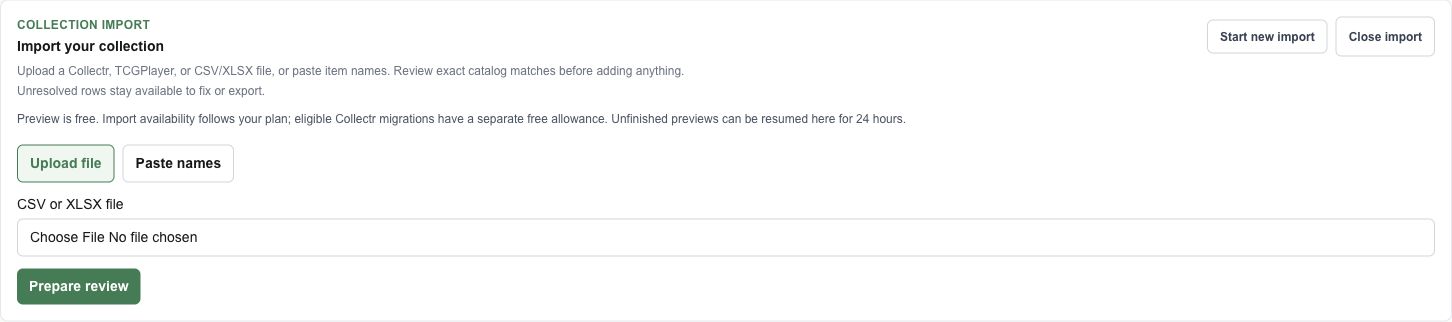
- Open More → Import CSV. In Import your collection, leave Upload file selected.
- Choose your export under CSV or XLSX file, then select Prepare review. This uploads the file; it does not add items yet.
- Check Detected provider: Collectr and open Review column mapping. Confirm the columns below, then select Preview Rows.
- Review the matched items and quantities. Resolve any uncertain item or variation, then select Import exact matches to add the ready rows.
Or import in the iPhone or Android app
- Save the emailed CSV somewhere your phone’s file picker can access.
- Open the Collection tab and select the destination collection.
- Tap the collection header’s three-dot button (labelled Manage collection for accessibility), then choose Import & export.
- Tap Import file, choose the CSV, and check the column mappings. Tap Preview rows.
- Review the exact matches and any suggested item/variation choices. Tap Import N, where N is the number of ready rows shown on the button.
A row can contain multiple copies, so the number of rows is not necessarily the number of items added. For remaining unresolved rows, continue the review on collectaio.com.
Check the columns before importing
Headers vary between exports. These are common Collectr columns the importer recognizes. Use the item’s name, not a broad Product Type, for Item name.
| CollectAIO field | Export column |
|---|---|
| Item name | Card Name, Product Name, or Name |
| Quantity | Quantity, Qty, or Count |
| Set name / Card number | Set Name / Card Number |
| Variation / finish | Variant, Printing, or Finish |
| Condition / Language | Condition / Language |
| Acquisition cost | Purchase Price, Paid, or Cost (per copy) |
| Acquired on | Purchase Date or Acquired Date |
| Reference value | Market Price, Portfolio Value, or Value |
Acquisition cost means what you paid per copy. Do not map a market value or a total for several copies to that field. Check amounts and currency before importing; do not assume the import converts currencies.
Collectr values remain private reference information. CollectAIO calculates its own values, so totals can differ. A CSV migration does not transfer Collectr’s historical collection-value chart.
Handle rows that need review
No exact match and Variation confirmation needed mean a row needs your attention. Check the set, card number, language, finish, condition, and grade. Only choose a suggestion when it is the item you own; leave uncertain rows unresolved.
On web, use Export unresolved rows to save the remaining work. You can also select missing items and use Request selected missing items; submitting a request does not immediately create a catalog match or import the row.
If the provider appears as Generic CSV/XLSX, check the original headers and map the fields manually. The Collectr-specific allowance depends on the file being recognized as Collectr; resolve that before finalizing if you intend to use it.
Resume safely and avoid duplicates
Keep working in the same import when retrying or resolving rows. Already imported rows in that upload stay saved. Start new import creates a separate import; uploading the same file again can add another copy of items you already imported.
Unfinished previews can be resumed for 24 hours. Keep your original file and export unresolved rows before the preview expires. If you need a new upload, include only rows you have not already imported.
Files must be CSV or XLSX, no larger than 5 MB. Detected Collectr files support up to 10,000 rows; plan and collection limits still apply. After importing, compare quantities and variations with the original export before considering the migration complete.